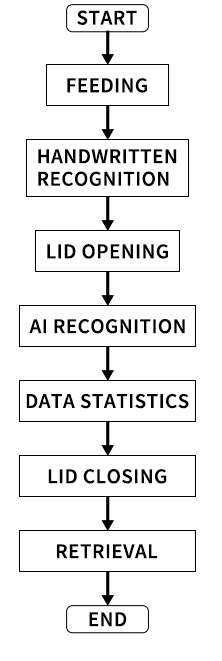

Instrument Composition
-
Computer: Processor: 12th Gen Intel Core i5 Processor, Max Turbo Frequency 4.4 GHz (12 cores, 16 threads), 18 MB Intel Smart Cache
Graphics Card: Intel Iris Xe Graphics eligible
DDR5: Standard configuration of dual-channel 16GB (2*8GB)
Storage: 500GB NVMe SSD
Display: 27 inches
-
Petri Dish Feeding and Retrieval Assembly:A single assembly can store up to 30 petri dishes for the equipment; it can intelligently and automatically lower and retrieve petri dishes throughout the process according to instructions, without manual assistance.
Storage Method: Step-type Lifting and Lowering
-
Cleaning Assembly:Cleaning Tank: Adopts a brush-based cleaning method
Picking Needle Sterilization: Uses high-temperature heating for disinfection
Operating Chamber Sterilization System: Utilizes ultraviolet (UV) lamps
Automatic Lid Opening and Closing Device:Automatically tracks and positions petri dishes, uses pneumatic suction cups to accurately open and close petri dish lids, and the entire process is fully automatic and intelligent.
Automatic Lifting and Locking Fixture:Equipped with 5 picking needle modules, as well as lifting and locking motor cylinders; each module can move and operate according to independent instructions. The mechanical motion module drives the picking needle modules to complete individual or parallel strain picking and petri dish streaking in accordance with equipment instructions.
Picking Needle:Material: Medical-grade 316F Stainless Steel
Automatic Identification Device:Capable of automatically identifying handwritten serial numbers; the handwritten serial numbers are required to be legible and must be written in the following format: 1-0, 1-1, 2-0, 10-2, etc.
-
Robotic Arm + Mobile Integrated Module:Customized power shaft arm integrated system reduces the space occupied by mechanical hardware and is integrated with the image capturing and recognition system; it features a wide range of motion, and image capturing is fast, accurate and clear.
Accuracy: ±0.025 mm
Instrument Structure
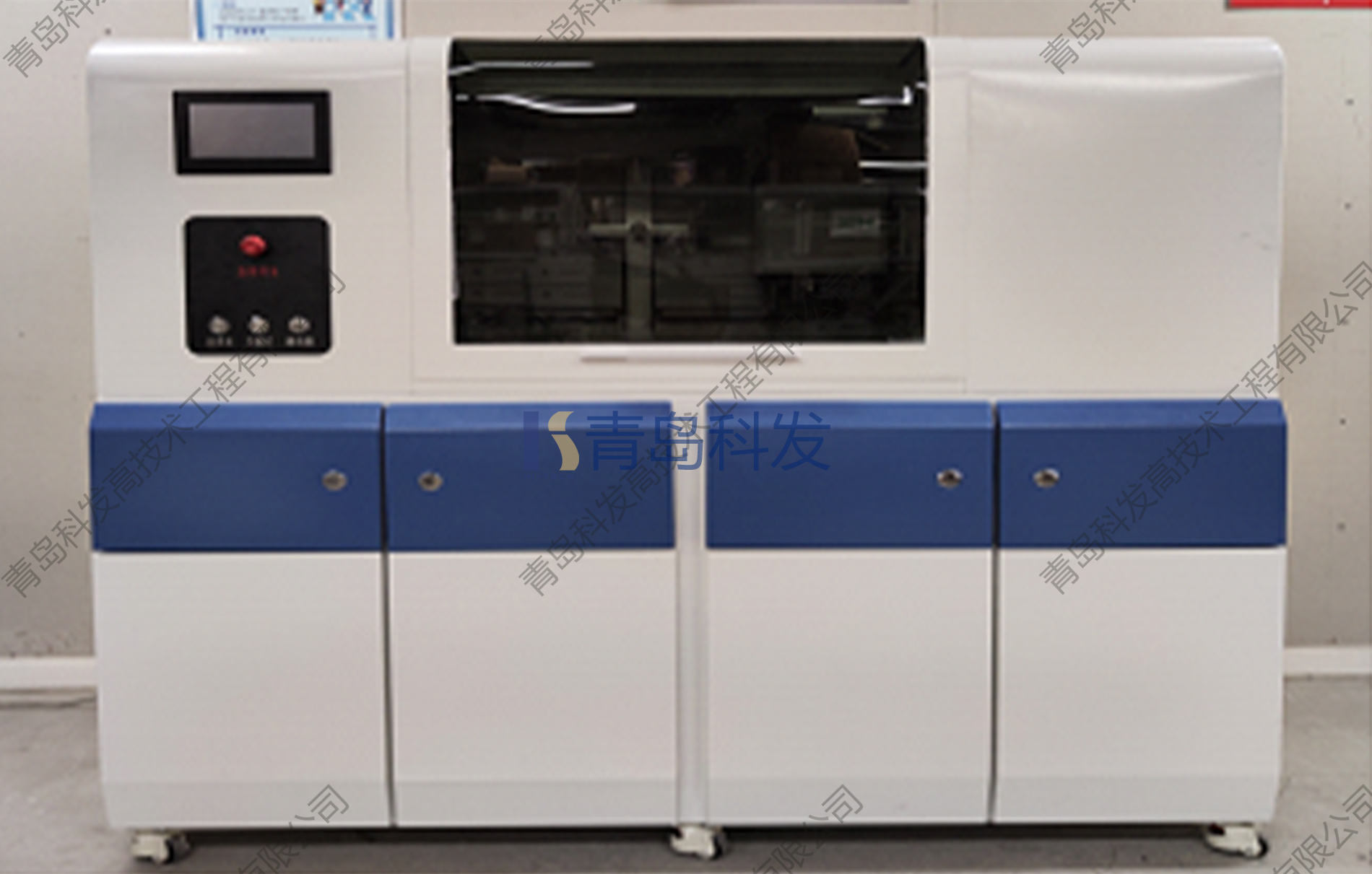
Figure 1
The equipment is an integrated all-in-one unit with expandable external functions; it is divided into a feeding bin, a working bin and a collection bin, with an electrical area at the bottom, and is equipped with a computer and a handheld iPad.
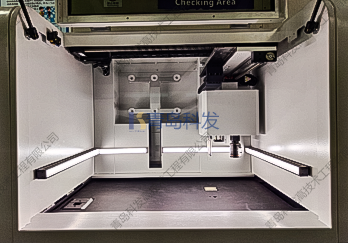
Figure 2
Structures such as suction cups, lifting rods, light source cameras, robotic arms and picking needles are located in the working bin. The inkjet printer is mounted on the sliding bottom plate of the working bin, and the inkjet printer controller is placed together with electrical components.
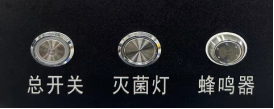
Figure 3
The metal touch operation screen, sterilization lamp, main switch (see Figure 3), and emergency stop button (see Figure 4) are all located on the left end face of the equipment surface; they integrate multiple functions into one, facilitating manual operation.
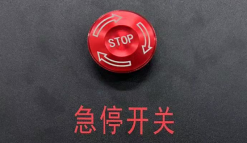
Figure 4
Software Interface
Home Page
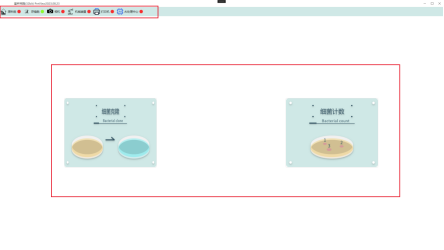

Raw Material Bin: Red indicates material shortage, green indicates normal status
Storage Bin: Red indicates material shortage, green indicates normal status
Camera: Red indicates disconnection, green indicates normal status
Mechanical Device: Red indicates disconnection, green indicates normal status
Printer: Red indicates disconnection, green indicates normal status
AI Processing Center: Red indicates disconnection, green indicates normal status
(When the software is started, the system performs an overall self-check, and all indicators show red.)
Strain Clone
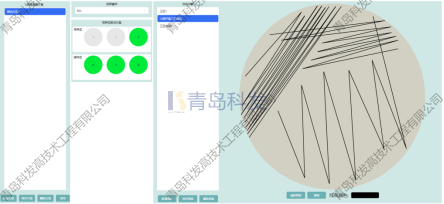
a) Select [Strain Cloning]
b) Create a protocol for the first run: click [New Protocol], enter a protocol name (any characters are allowed for the name; try to make it easy to understand), then click [Save Protocol].
c) Under the "Select Strain" heading, select the name of the cloned strain.
d) In the petri dish movement protocol, select the movement sequence of petri dishes:"Culture Dish" refers to petri dishes containing bacteria, and the system defaults to position 1."Inoculation Dish" refers to sterile petri dishes; you can click 4, 5, 6 to select whether an inoculation dish is placed at the corresponding position (green indicates a petri dish is placed, gray indicates empty).
e) Click [New Pattern], enter a pattern name, and click [Confirm].
Draw a pattern within the circular range of the pattern area.
Press the left mouse button to start drawing.
Press the right mouse button to end the drawing of the current curve segment.
Click [Save Pattern] when the entire pattern drawing is completed.
You can also select the curve color according to your preference.
f) After completing the parameter settings, click [Save Pattern] and [Use Pattern].
g) Click [Start Execution].
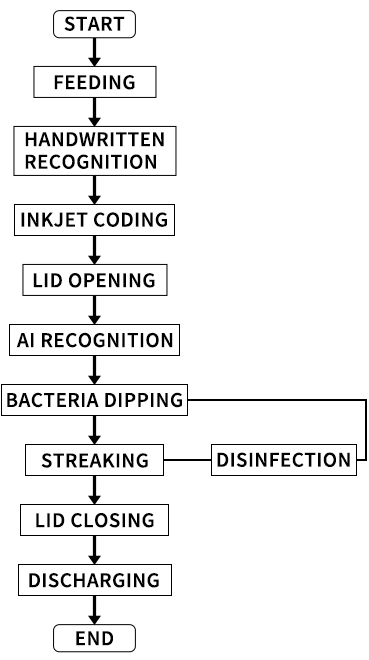
Strain Counting
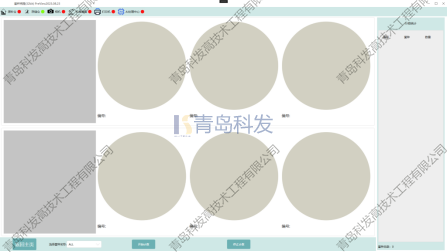
a) Select [Strain Counting]
b) Select the name of the strain to be counted.
c) Click [Start Counting].
d) Run the flow chart.